
User guide
Introduction
User Guide for SDE Regression Testing Snapshot (RTS). RTS is a database snapshot management tool for developers and integration testing. The goal is to facilitate database creation and restoration with minimized downtime by providing a simple interface and an API that requires minimal expertise to use.
The main idea behind SDE RTS Manager is to restore data volumes using AWS’s Elastic Block Storage (EBS) snapshot volumes or AWS RDS snapshot capability. It takes less than a minute to restore a volume from an EBS snapshot (tested on 200GB volumes) compared to a few hours using a standard database restore. Furthermore, it can restore multiple databases at once by restoring the data volume; databases such as AWS Transform for mainframe JICS and BLUESAM can be on the same server depending on size. By default, servers are created with t2.micro EC2 instances (free tier). However, if there is a special need, users can select different types of EC2 instances within a preset range. Databases on EC2 work well with small test databases. However, for larger databases (>500GB), we strongly recommend selecting AWS RDS technology.
Limitations & support
RTS Manager supports one data volumes for database on EC2 and all the variety of databases proposed by AWS RDS. Please, refer to AWS RDS online documentation for more information https://aws.amazon.com/rds/.
Supported databases
- Database on EC2 instance (docker image): PostgreSQL db engines with Alpine distribution is supported.
- Database on AWS RDS: PostgreSQL db engines is supported.
Other database can be used, however we do not offer support on setting them up inside RTS. Some database engines require different initialization process which makes it hard to support all engines or all distribution configurations.
Access
SDE RTS is an internal tool and can be accessed through https://dws-manager.bluage.local inside a VPC AWS Account.
General information
RTS Manager is a single-page application. In order to minimize API calls to AWS - for which the call rate is limited by default for each account - user data is persisted in the browser's local storage, and all dynamic data comes from a WebSocket. This WebSocket gets all its information from a cache server with a global timeout of 5 minutes. This implies that changes made outside of the RTS Manager UI or API will take up to 5 minutes to be reflected in the RTS Manager.
In simpler terms, refreshing or reloading the application will not display updated values or information for EC2/RDS instances or Snapshots.
Features
Server tabs
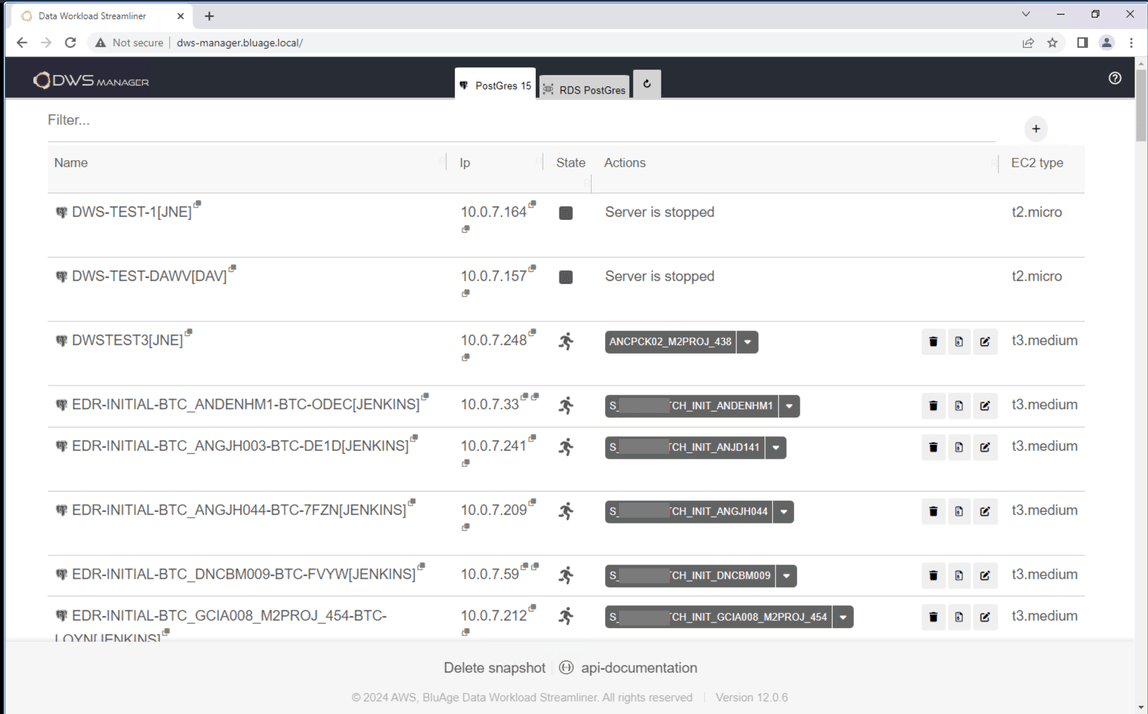
Each tabs represent a DB technology. These tabs can be configured in AWS Parameter Key Store with the key: /EDR/DOCKER/COMPOSE/INSTANCES Creating a new server, a snapshot is always in relation to the tab selected. Once the key is changed all users will need to reload using the spin arrow as shown below.

Selecting
aservers techno from the tab will also filter out selectable snapshots. For example an RDS snapshot won’t be visible for a PostgresSQL on EC2 tab.
Main table
The main screen displays a table showing a list of servers in different states: running, stopped, terminated. From this screen multiple features are available:

Table description & features:
- Name: Server instance name.
- User name in square brackets. Clicking of the double square icon will copy the server fully qualified name in clipboard.
- Ip: Server instance IP address.
- Clicking on the first “double square” icon will copy the IP address in clipboard.
- Clicking on the second “double square” icon will copy the server identifier (i.e.: i-0d625bb97d82e13de) in clipboard.
- Actions:
- Drop down to restore a snapshot
- The “bin” icon to delete the server
- The “zip” icon to create a new snapshot
- The “edit” icon to change DB name, user and the instance type. Please note that changing the server name, will update the DNS.
EC2 Type: Server instance type.
Filter server list
Servers can be filtered by typing anything (note it's case insensitive) in the input above the table:

Restoring a server
- Restoration: the drop down, allows user to restore a DB either by selecting a snapshot (1) or by clicking on the snapshot name (2).

Creating a server
Creating a server will create a DNS entry with the following names: <server name>.bluage.local.
For EC2 instance an A record is created with the EC2 IP address. Be aware that private IP are allocated using DHCP and can change if the instance is stopped.
For RDS instance a CNAME record is created pointing to the fully qualified name created by AWS RDS service.

To create a server click on the (+) icon. It will displays the following popup:

- User name is required.
- Server name is required and must be unique. A DNS record is created in domain “bluage.local”.
- Server techno represent the type of database.
- Instance Type allows to choose the type of instance for EC2 or RDS server.
When selecting “Blank disk” for standard EC2/EBS the volume creation, options display as follow:
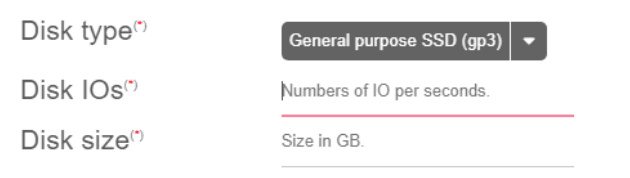
Option “Blank disk” allows to create a server with an empty database (just the system database will be present.) If this option is selected, the volume type, IOs and volume are available to choose from. Refer to AWS documentation on the ratio volume size / iops: https://docs.aws.amazon.com/ebs/latest/userguide/provisioned-iops.html
If “Server Techno” points to AWS RDS, different options are displayed to define the volume.

- Option “Default IOs” allows the system to determine the number IOps.
- Disk IOs, specifies the number IO per second.
- Disk Size: the initial volume size.
- Max Storage: Max volume size.
Instance type: The type of RDS instance type. Note these instance type are different from EC2 instance type.
Creating a snapshot
Depending on the server technology this will create an EBS Snapshot or an RDS Snapshot.
Snapshots can be created by clicking on the “zip” icon.
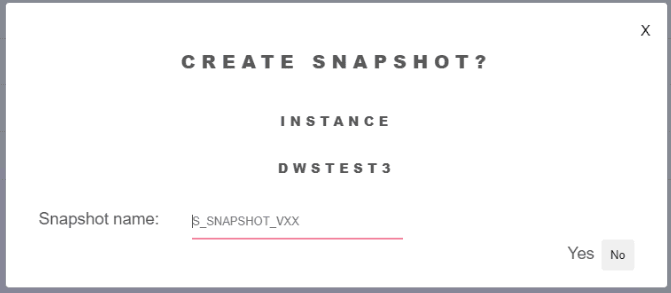
To create a snapshot, enter a “Snapshot name” and then click “yes”.
This action will stop PostgresSQL database and create a snapshot. On EC2 the database won’t be accessible during that time.
Note: For large volumes, snapshot creation time varies depending on the current load on the AWS availability zone (datacenter). In case of a timeout, check the state of the snapshot on the AWS Console. This issue will be addressed in a future version of RTS.
Editing a server

To edit a server click on the icon “edit”. This will allow to edit server’s parameters listed below.

- User name does not have any impact. It will change the tag “Name” of the EC2 or RDS. And is useful when filtering DB instances.
- Server name will update the DNS record.
Instance Type will stop the DB instance and change it.
Deleting a server
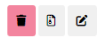
To Delete a server click on the “bin” icon to display the delete confirmation popup.

This action will terminate either an EC2 instance or an RDS instance. Clicking “Yes” will rename the instance by adding “_DELETED” before termination allowing to recreate another server with the same name.
When deleting a server the “data” volume will be deleted with the DNS record.
Delete Snapshots

Clicking on “Delete Snapshot” at the bottom of the view will display a popup allowing to delete permanently a snapshot.
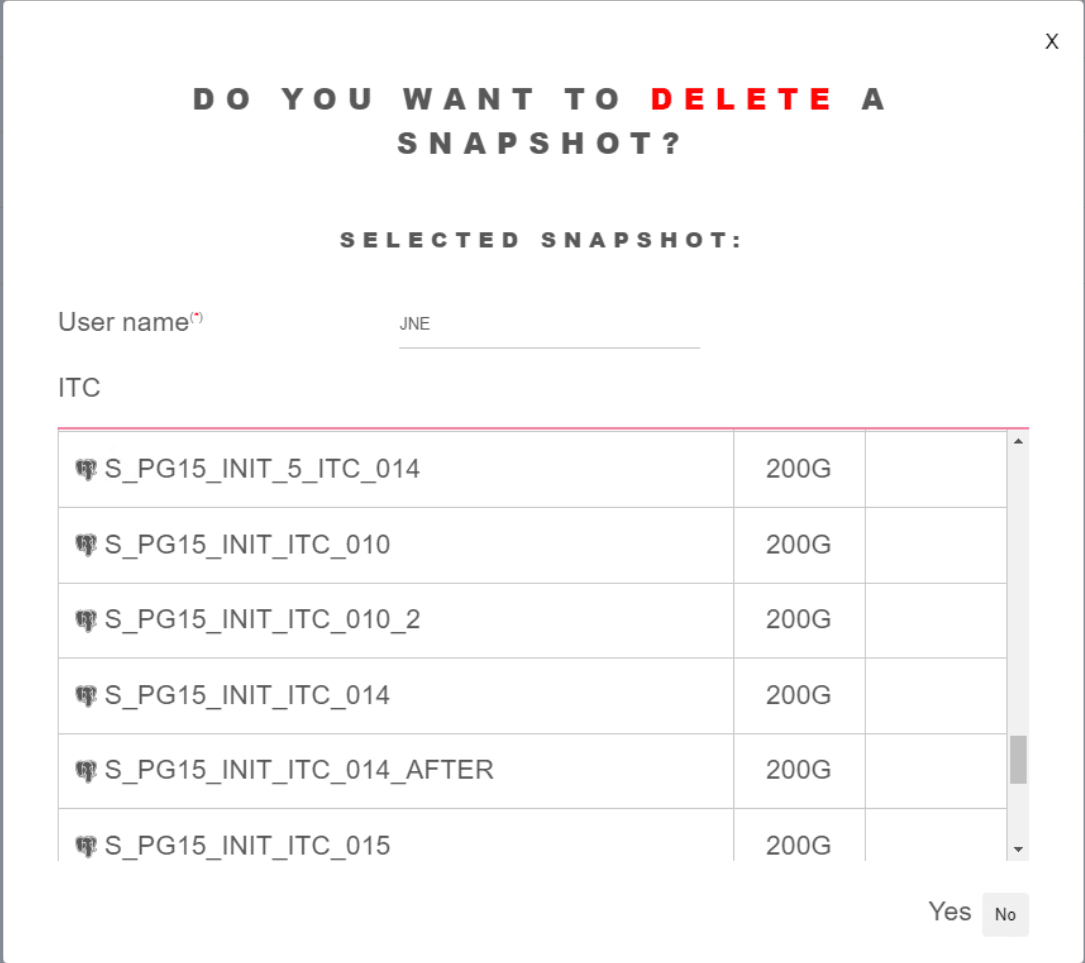
- "User Name" is required and will be logged when snapshot is deleted.
- It’s possible to filter the snapshots list:

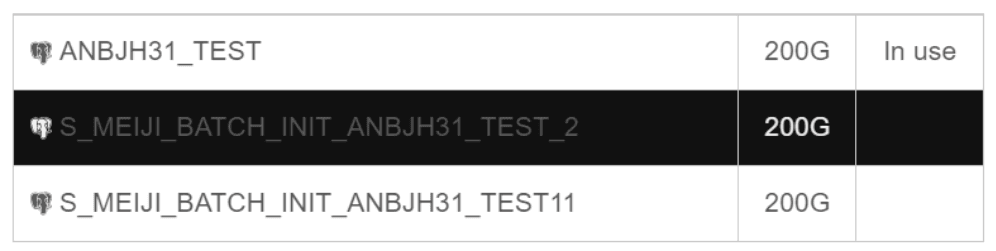
- Only snapshots that are not used by database’s instances can be deleted.

To delete a snapshot click on the snapshot and click “Yes”.
API documentation
For DevOps, the API documentation is available in the link at the bottom: http://dws-manager.bluage.local/api-documentation/. This will open a new tab with the available endpoints.
